
Smartfit packs the most material into the smallest space, so you get to:
- Save money (with less material)
- Save your time (with no parts to arrange)
- Save laser time (with faster prints)
Smartfit your whole design:
-
Go to Glowforge App (app.glowforge.com), and sign in.
-
Open the design you want to use that has multiple shapes.
-
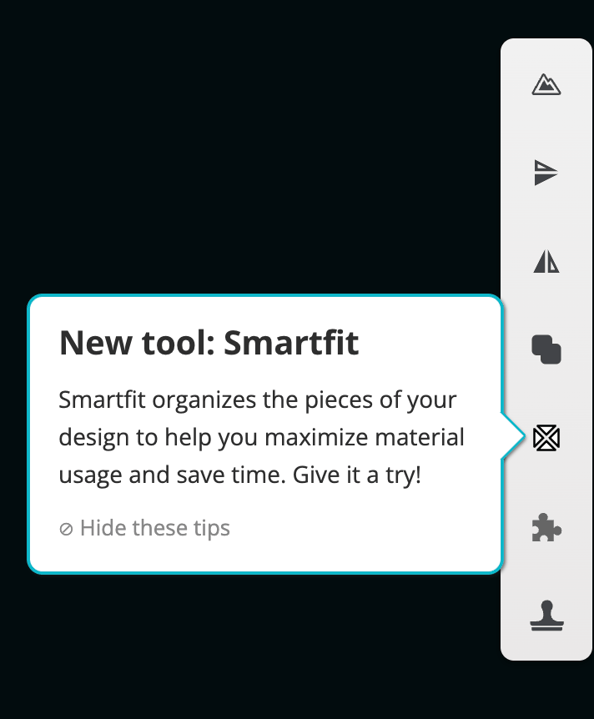
Click-and-drag to highlight all the shapes in your workspace you want to Smartfit. Selecting multiple shapes at one time will make the Smartfit icon appear in the right menu bar.
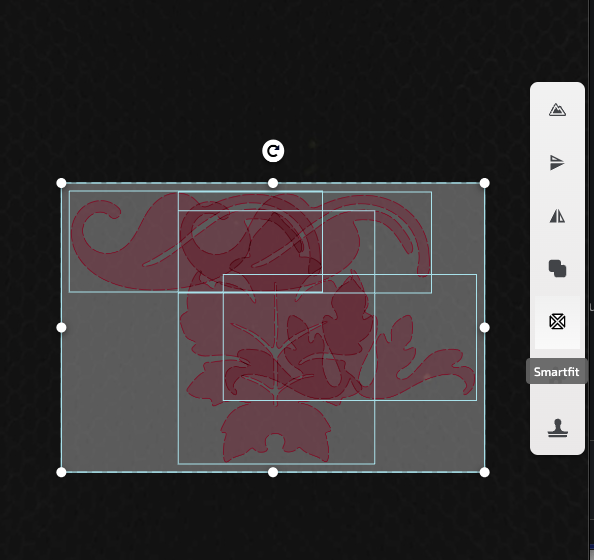
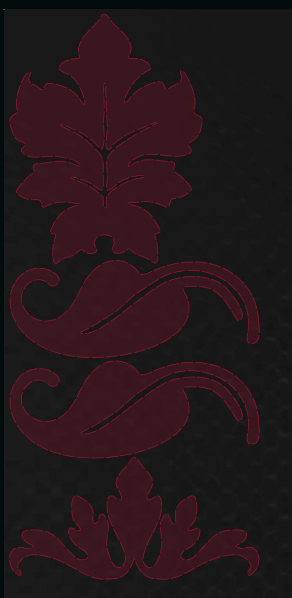
4. Smartfit will arrange the selected shapes to fit within that area as efficiently as possible.
This is useful when you want to reuse a section of material, fit shapes around an area you've already cut, or organize parts into a specific region of your workspace.
Notes for non-Glowforge laser owners
If you don't have a Glowforge connected, your canvas size defaults to 12 x 20 inches. You can change the canvas size by selecting a different machine from the Machine dropdown in the upper left corner of the workspace. Smartfit will pack shapes within the boundaries of your selected canvas size.